The name matches, the art does not
Check for alternate artwork and reprints sharing the printed code. Compare the complete image before saving.
ONE PIECE COLLECTOR GUIDE
Learn to read the printed code, check the artwork and save the right card. A practical One Piece scanning guide, with a sample you can try right here.

Free to download · Optional Pro upgrades
Read the step-by-step tutorialTRY IT YOURSELF
Illustrative demo · Fixed sample · No camera or account access
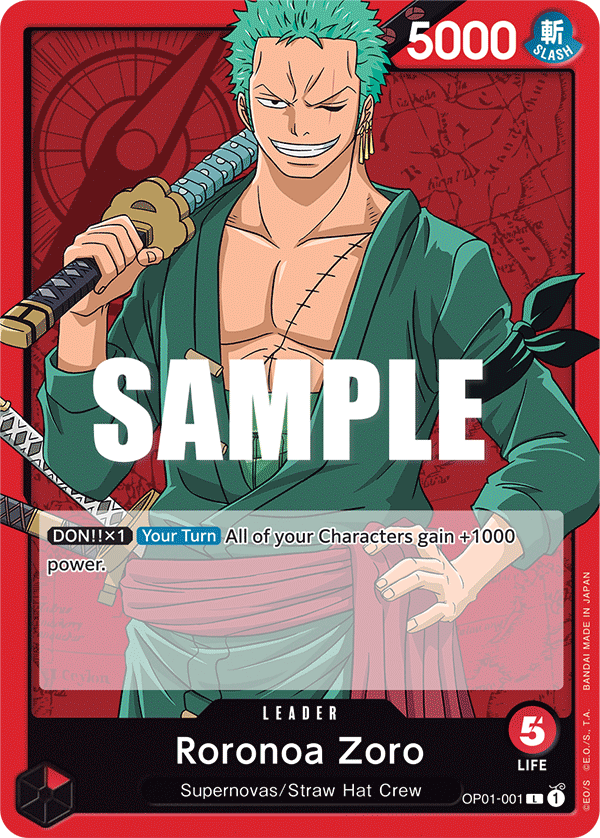
Romance Dawn · OP01-001
English · Leader · No live price
OP01-001 is the printed code on this sample. Alternate artwork may share a code, so compare the image as well as the number. The SAMPLE watermark belongs to the catalogue preview.
Only this page changes. Reset or reload clears the demo.
FROM FIRST SCAN TO COLLECTION
Check the full printed code, language and artwork. Take a moment at the review step; it is where you turn a suggested match into a useful collection entry.
Locate the full printed code near the bottom of the card. Keep both parts: for example, OP01-001, rather than just 001. Also note the card language and whether the artwork is a regular or alternate illustration.
Our sample is the English Roronoa Zoro Leader, OP01-001, from Romance Dawn.
Open the single-card scan option and choose One Piece in the game picker. Allow camera access. Choose the matching language when that control is available; on Android, choose English or Japanese to match your card when those catalogues are available.
The precise screen layout and scanner options depend on your installed version and platform.
Place one card on a plain background and hold the phone parallel to it. Keep the lower edge and printed code visible, even on full-art cards. Avoid fingers, sleeve reflections and nearby cards inside the frame. Follow the app’s capture or matching prompt.
Move harsh light off the foil surface rather than moving so close that the camera loses focus.
Read the suggested full code and compare the name, language and illustration with your card. Check card type too: a Leader and a Character with the same character name are not interchangeable entries. Review any alternative matches before confirming.
A shared printed code does not necessarily identify the exact artwork variant or reprint. Do not choose a parallel just because its code matches.
Check any finish or variant options that your installed app offers, then use its add action. If the expected artwork is absent, search for the full printed code manually and inspect the available entries. Report an unresolved card with the code and language.
Only save the match once it represents the card you own. The demo adds one sample to a temporary collection, never your account.
Open My Collection to verify the saved entry and quantity. A binder can group a set, your favourite crew or a personal showcase. Keep English and Japanese editions and alternate illustrations distinct wherever supported.
Before scanning duplicates, check what is already saved. Collection tracking is not a check of tournament legality or deck rules.
SMALL ADJUSTMENTS. BETTER SCANS.
Check for alternate artwork and reprints sharing the printed code. Compare the complete image before saving.
Reframe to include the full prefix and number. In manual search, use the complete code, such as OP01-001.
Check the selected language. Similar artwork and a shared code do not make the two language editions the same collectible.
Reduce glare, clean the lens and keep the lower code visible. If it still fails, use manual search and confirm the exact entry.
Still stuck? Visit the Help Centre or report a scanning issue with the card name, number and language.
BEFORE YOU START
No. This is a guided simulation with one fixed sample. Download ScanDex to use the app’s available camera and catalogue tools with your own cards.
No. Use the full code to narrow the search, then compare the illustration, language and printing details. More than one collectible version can share a code.
The demo has no live market connection. In the app, price availability depends on the card, source and version. Verify the exact printing and condition before using an estimate; a price is not a guaranteed sale.
Yes. ScanDex is free to download with optional Pro upgrades. Check your installed app and store listing for current feature availability and purchase details.
YOUR NEXT CARD IS WAITING
Download ScanDex for iPhone or Android and try your own One Piece cards.
Free to download · Optional Pro upgrades